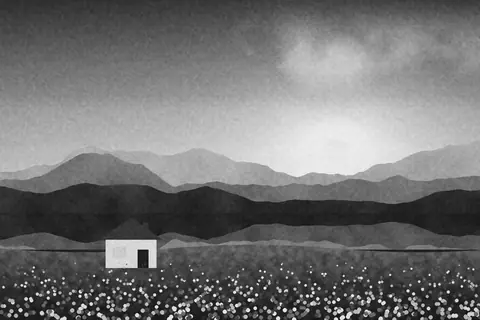
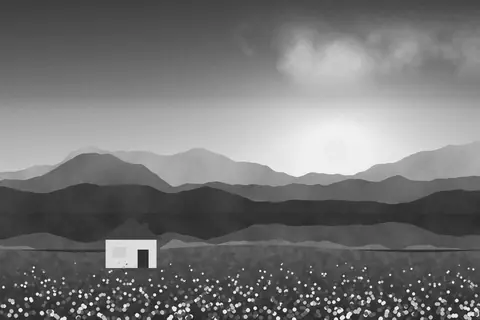
Onyx, a free dramatic black and white filter
Onyx is our most dramatic black and white: dark, brooding skies, strong contrast and bright highlights.
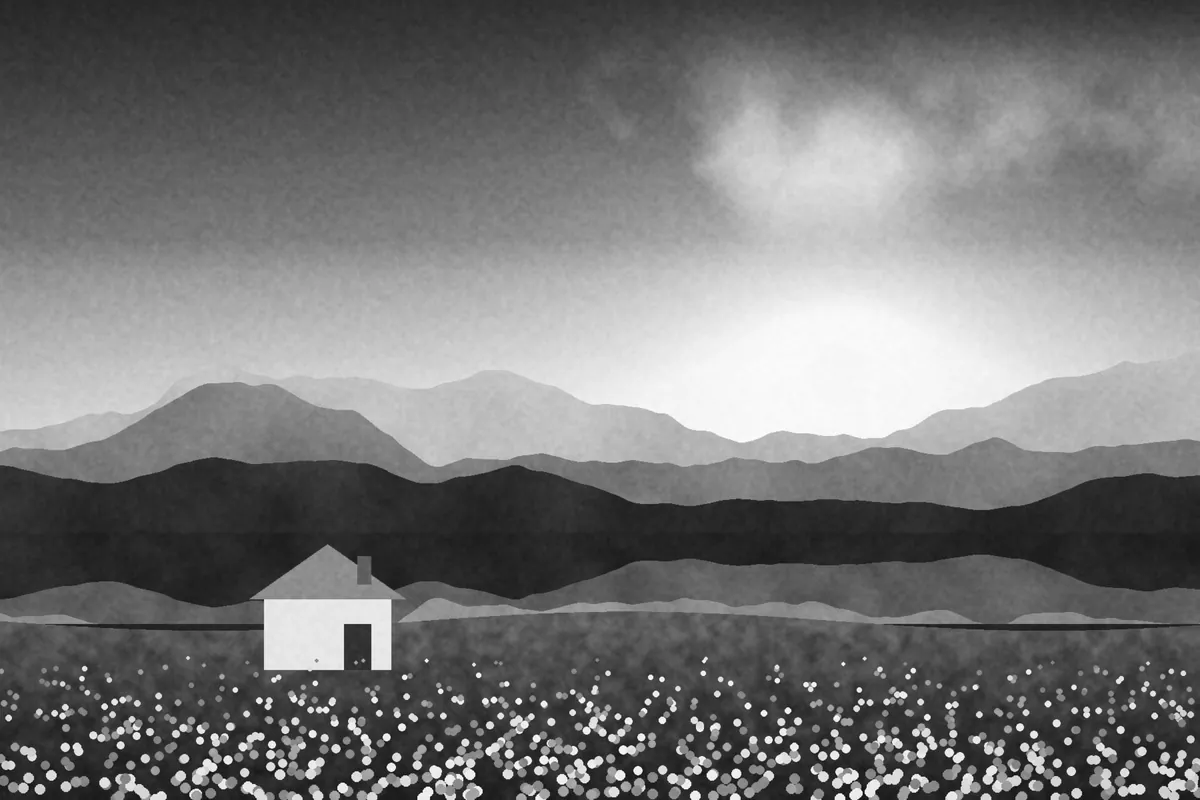

What Onyx looks like
Onyx converts color to black and white in a way that darkens blues, the digital version of shooting black and white film through a red filter. Skies turn deep gray to near black and clouds stand out.
It's built for drama: architecture against the sky, landscapes with clouds and graphic street scenes.
Color at a glance
Each pair shows a color before (left) and after (right) Onyx.
Best for
- Landscapes with clouds
- Architecture against the sky
- Graphic street scenes
- Moody seascapes
Tips
- Lift Shadows if the darkest areas lose detail.
- Add a slight Vignette to focus the eye.
- For portraits, try HP5: Onyx can darken skin with blue light.


How to use Onyx
- Click Try Onyx on your photo. The editor opens with Onyx ready.
- Choose a photo, RAW files included. The look is applied as soon as it opens.
- Adjust Filter strength on the Filters tab, and fine-tune with the Adjust tab.
- Save it as JPEG, PNG, WebP or TIFF on the Save tab.
Use Onyx on video and in Lightroom
You can take this look into other apps. Open it, then on the Save tab download it as a LUT (.cube) for Premiere Pro, DaVinci Resolve, Final Cut or CapCut, with versions for log footage, or as a Lightroom profile with an Amount slider. Both carry the look's color; add grain and glow in the other app.
Open Onyx to make a LUT · Open Onyx to make a Lightroom profile