Add realistic film grain to your photos
Give digital photos the texture of film. Control the grain's amount, size, roughness and color, and see it at full size before you save.
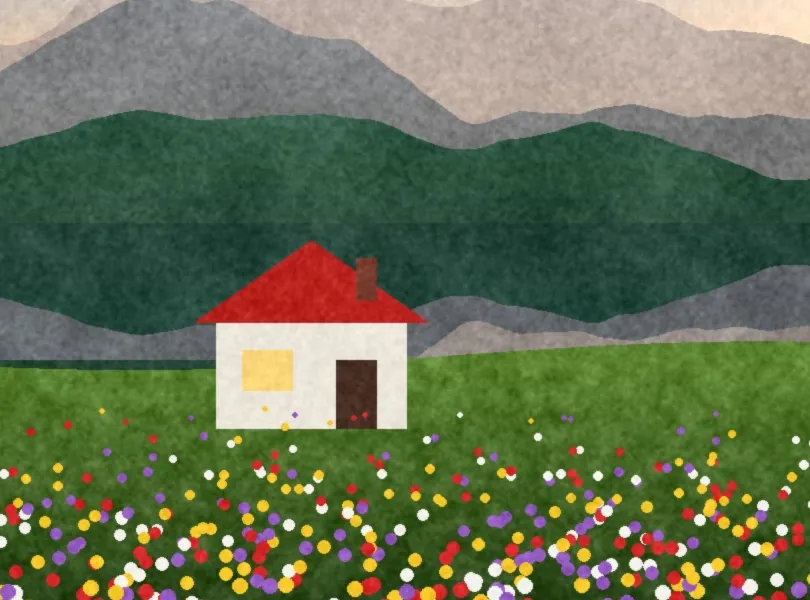
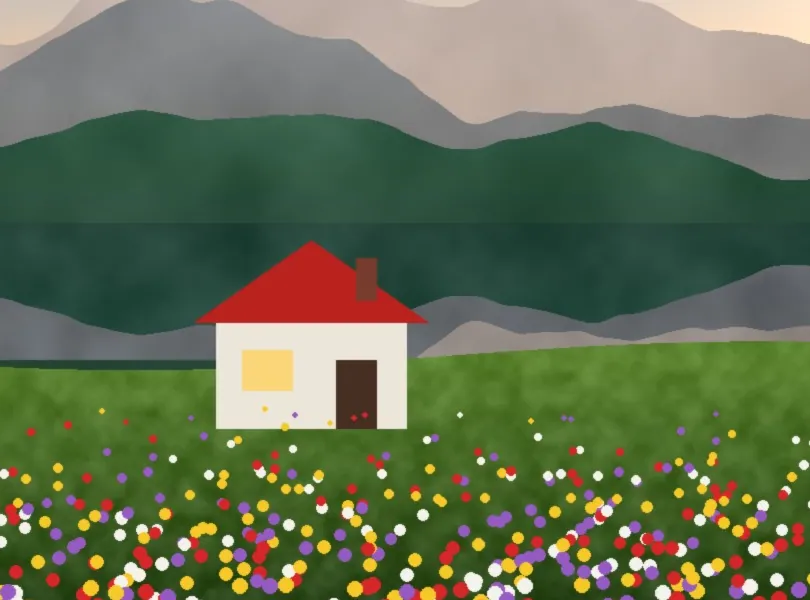
How to add film grain to a photo
- Click Add grain to a photo and choose a photo. Grain is set to a starting point.
- On the Adjust tab, under Grain, set Amount, Size, Roughness and Color.
- Zoom in to check it at full size, since grain is easy to misjudge on a small screen.
- Save your photo, or save the settings as a look to reuse.
The grain controls
- Amount: how strong the grain is.
- Size: fine like a slow film, or coarse like a fast or pushed film.
- Roughness: how uneven and clumpy the grain looks.
- Color: from monochrome grain to the colored grain of color film.
Grain that looks like film
Real film grain changes with brightness: it shows most in the midtones and less in deep shadows and bright highlights. Foto Fixer's grain follows the same pattern, so it looks part of the image rather than a noise layer on top.
Pair it with a film look
Grain works best with a film color look. Try P400 with light grain for portraits, TX400 for gritty black and white, or Rust for heavy texture. Add halation for a glow around highlights.
Questions
Does grain show up in the saved photo?
Yes. Grain is scaled to the photo, so the saved file looks like what you see in the editor.
Can I add grain to many photos at once?
Yes. Copy the edits from one photo and paste them, or apply them to all photos, then save all as a zip.
Is grain included in a LUT?
No. LUTs and Lightroom profiles hold color only, so add grain in your video or photo app.
Is it free?
Yes, with no account and no watermark.