Edit multiple photos at once, free
Open a whole set of photos, give them a consistent look, and save them all in one zip. Every photo keeps its own edits.
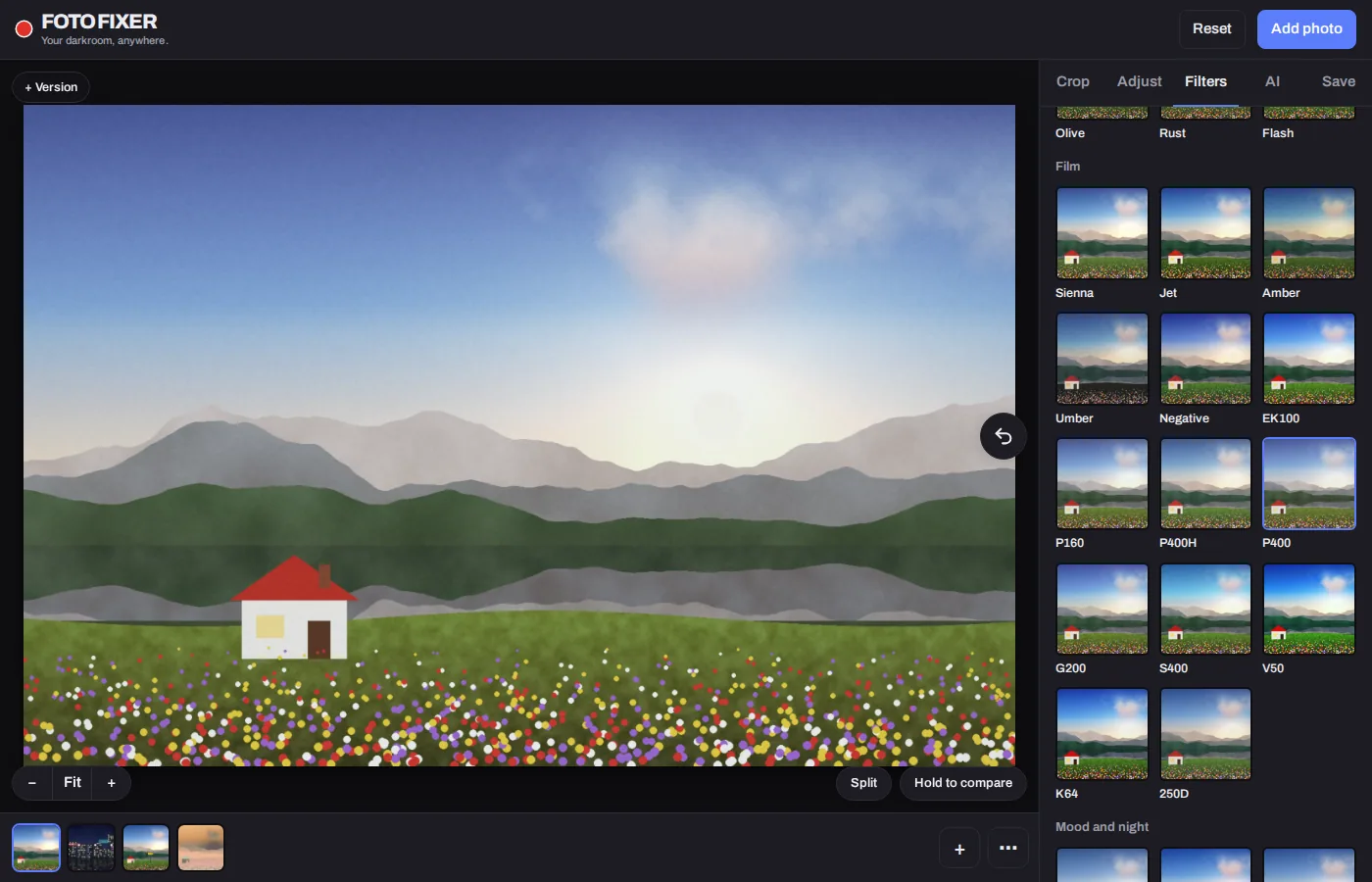
How to edit multiple photos at once
- Click Edit several photos and choose all the photos you want, RAW files included.
- Edit one photo until it looks right.
- Open the ⋯ menu and choose Apply these edits to all photos, or Copy edits and Paste edits to choose which parts carry over.
- On the Save tab, choose a format and size, then click Save all photos (.zip).
Each photo keeps its own edits
Photos appear in a filmstrip, each with its own edits and undo history. You can also make versions of a photo, for example a color and a black and white version, and switch between them.
Choose what to copy
When you paste or apply edits, you choose which parts carry over: the filter and its strength, Light, Color, Color match, Detail, Grain, Halation and diffusion, Vignette, the film negative setting, and crop. Crop is off by default, so different shapes stay as they are.
Save everything at once
Save all photos (.zip) exports every open photo with its own edits, in JPEG, PNG, WebP or TIFF. If you type a size, it sets the long edge of each photo. You can keep editing while it works.
Questions
How many photos can I open?
There's no fixed limit; it depends on your device's memory. Computers handle large sets; on a phone, a few dozen at a time is comfortable.
Can I batch convert RAW files?
Yes. See RAW to JPG.
Can I reuse a look later?
Yes. Save it under Filters > My looks, or share it as a link.
Is it free?
Yes, with no account and no watermark.